
You’ve narrowed your flooring search down to a handful of samples, and now they’re all lined up against your baseboard like contestants waiting for a verdict. Next to each other, all your final picks look like they could probably do your design dreams justice, but it feels like a gamble to make such a huge decision based on one small sample. If you’ve ever stared at a tiny swatch and tried to imagine it covering your entire living room, you’ve probably wished there was a better way—maybe even an app for flooring that could help you make a decision.
The good news is that there is actually a tool that can help you decide: an online flooring visualizer app. It helps you picture the overall look of a floor in a photo of your own space, instead of guessing from a sample the size of a coaster. It is a preview, not a final answer, so you’ll still want to confirm your favorites with physical samples. Let's explore how the Empire Today® floor designer works and how to get the most from it.
Ready to try it now? Try the floor designer and come back for tips on using what you find.
What Is an App for Flooring, and How Does the Floor Designer App Work?
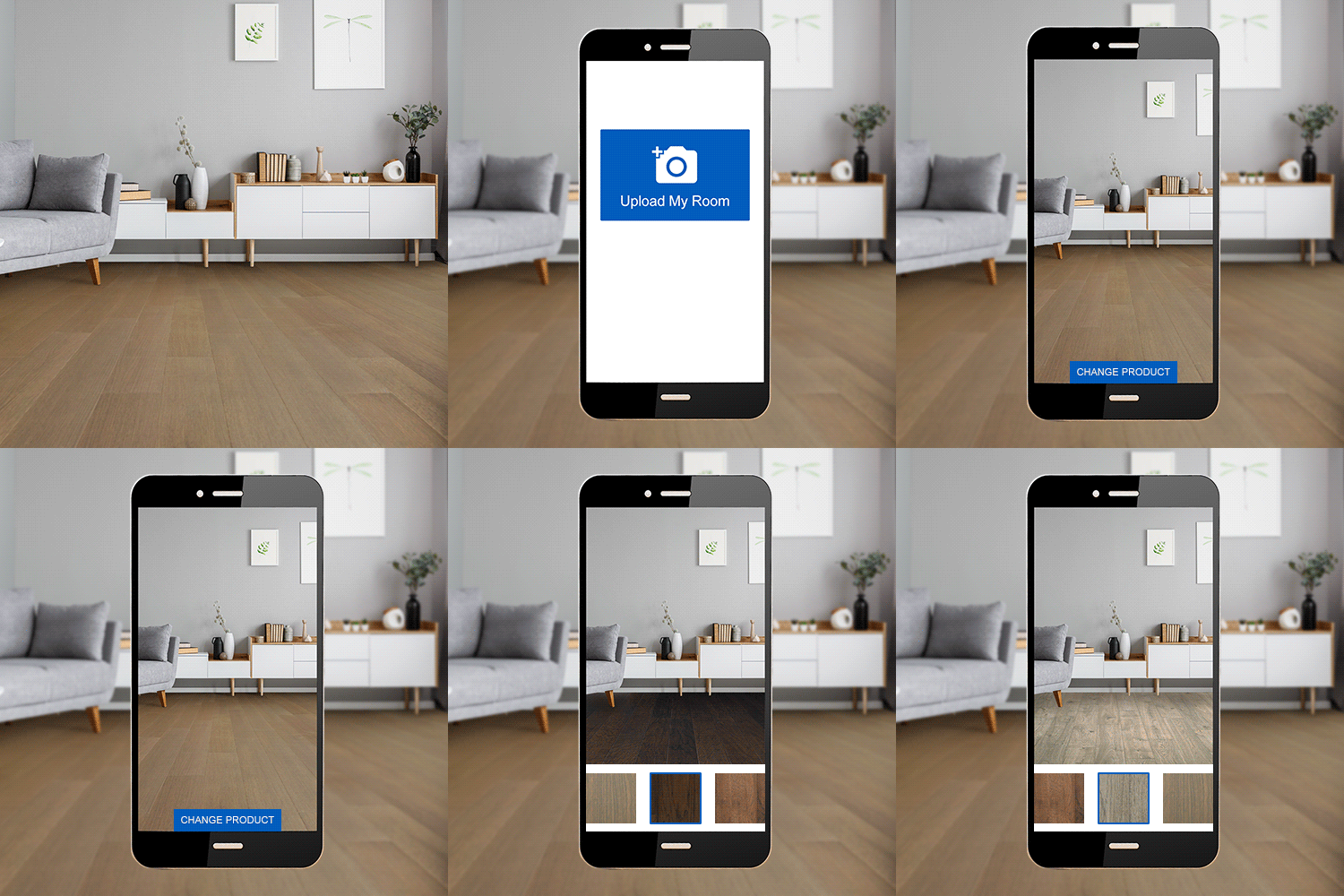
People searching for an app for flooring are usually looking for a digital tool that shows flooring in a real room instead of on a small chip in a showroom. The Empire® version is an online visualizer app, so there’s nothing to download. You upload a photo of your own room or choose a sample room if you’d rather browse ideas first.
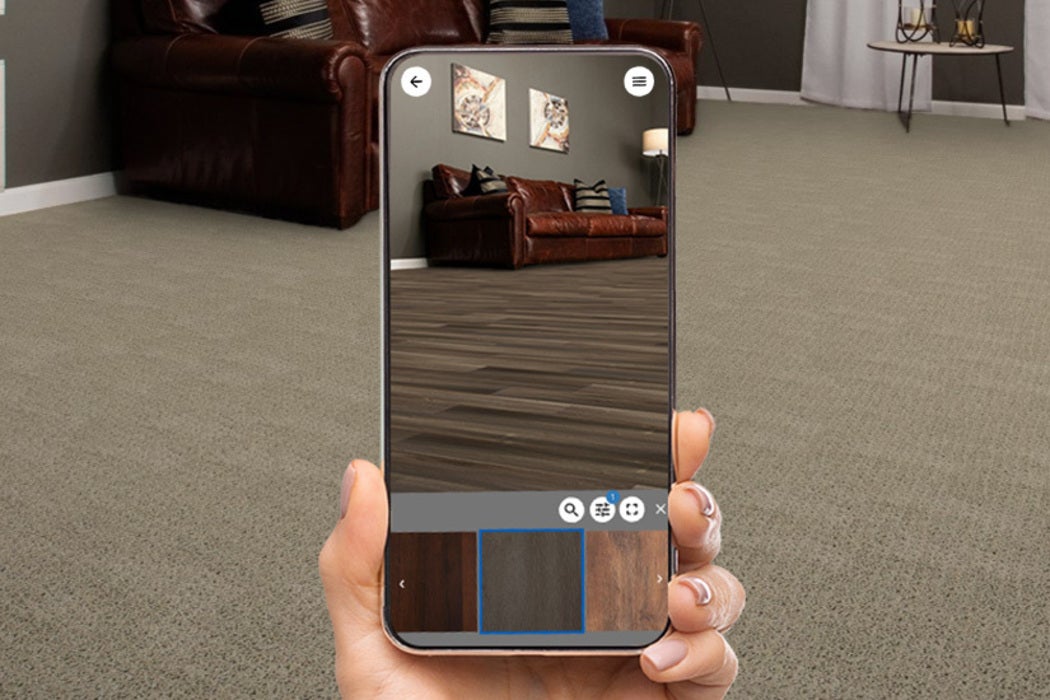
From there, you browse available flooring styles by color and type and see an approximate preview of how each one might look in that room. It’s a handy way to get a feel for color, pattern, and overall style before you commit to a new flooring product. You can also save or share your previews, which is helpful when a decision involves more than one person in the household.
Why Your Own Room Tells a Different Story Than a Sample Board
Flooring covers more square footage than almost any other design choice you will make, which is exactly why it can surprise you once it is underfoot. A warm walnut tone might feel cozy on a small sample, then feel too dark once it stretches across an open-concept floor plan. A cool gray plank might look sleek in a photo but feel a little stark next to your existing trim and cabinetry.
Think of it the way you would think about paint. A color on a tiny swatch card rarely behaves the same way once it covers entire walls. Flooring works the same way, only the effect is even bigger because visually, it interacts with every piece of furniture, every wall color, and every window in the room. Previewing a full floor in your own space gives you a more helpful sense of how it might feel to live with.
Tip: A digital preview is an approximation. Screen brightness, photo lighting, and the actual product you choose can all shift how a color appears in person, so treat the floor designer app as a complement to the flooring samples, not a full solution itself.
How to Use Empire's Floor Designer
The process is simple and repeatable.
- Start with your room: Upload a clear, well-lit photo of the space you want to update, or choose a sample room if you want to browse first.
- Browse available floors: Explore flooring by color and type and see how each option looks in your photo.
- Try different looks in the same room: Switching styles within one photo makes it easier to notice what you are drawn to and compare your top options
- Save or share your previews: Send them to family members or keep them handy for your next conversation about the project.
Empire also offers an additional Room Designer experience that highlights room styles and wall-color exploration. If you’re weighing paint against flooring, it can be a fun companion to the floor preview and help with full-scale room renovations
Matching the Preview to Your Room's Personality
The floor designer app is most helpful when you use it to test a floor against the details that are already part of your room, not just to admire the floor on its own.
- Wall color: Cool gray walls tend to read differently next to warm honey tones than they do next to pale, neutral wood.
- Natural light: A room with fewer windows often benefits from a lighter floor that helps the space feel open, while a sun-filled room can handle a deeper tone without feeling closed in.
- Furniture style: Rustic grain patterns, sleek tile, and wide-plank looks each create a different overall vibe, so it helps to picture your existing furnishings against the preview.
- Room size: A bold pattern can add character to a large space but may overwhelm a smaller room.
- Flow to nearby spaces: If your kitchen opens into a dining area, or your hallway leads into a bedroom, consider how the floor will look alongside those neighboring spaces, too. A seamless flow between rooms often matters as much as the floor itself.
Comparisons Worth Making in the Floor Designer App
Once your room is uploaded, it’s worth trying a few contrasts, even if you think you already know what you want. Within the available selection, you might explore:
- Light versus dark colors: See whether a lighter tone makes the room feel more open, or whether a deeper one adds the warmth you are after.
- Wood versus stone looks: Compare wood-look flooring with stone-look flooring to see which suits your room's character. Subtle versus prominent patterns: A quiet, uniform surface and a bold pattern can create very different moods in the same space.
Trying a few contrasts can reveal preferences you may not have expected. You might come in set on one look and leave drawn to another completely different one
From Preview to Professional Installation
A visualizer app is a useful starting point, but the next step is seeing physical samples in your home. Having physical samples in your hands lets you see them in the daytime and in the evening, next to your furniture, walls, and finishes. That is where shopping at home with Empire can help bridge the gap between your preview and the real thing. You can save your visualizer selections and then a flooring professional can discuss available samples and similar options, walk through your space, and explain what an All-Inclusive Price Estimate▲ would look like for your project before you commit to anything.
Bringing It All Together
Choosing new floors doesn’t have to start with guesswork. Upload a clear photo to the floor designer app, explore available styles, and notice how each option interacts with your walls, light, and furniture. Narrow your list to a few favorites, then confirm your choice with physical samples and a conversation with a flooring professional.
Ready to see what might work in your space? Try Empire's floor designer and start exploring. And if you live in one of Empire's service areas, you can schedule a FREE in-home estimate when you’re ready for the next step!